Photo scenes
Use a real photo (a kitchen, a playground) as a board, with tappable areas on it.
- 1
Parent area → Edit boards → create an empty board, for example “Kitchen”.
- 2
In the board editor, tap Use a photo as the board (scene) and choose a photo.
- 3
Tap the photo on the thing you want, for example the fridge. Type a word and tap Save. A box appears there. Repeat for other things.
- 4
Select a box to make it Bigger or Smaller, or drag it to move it.
- 5
In the talker, tapping a box says its word.
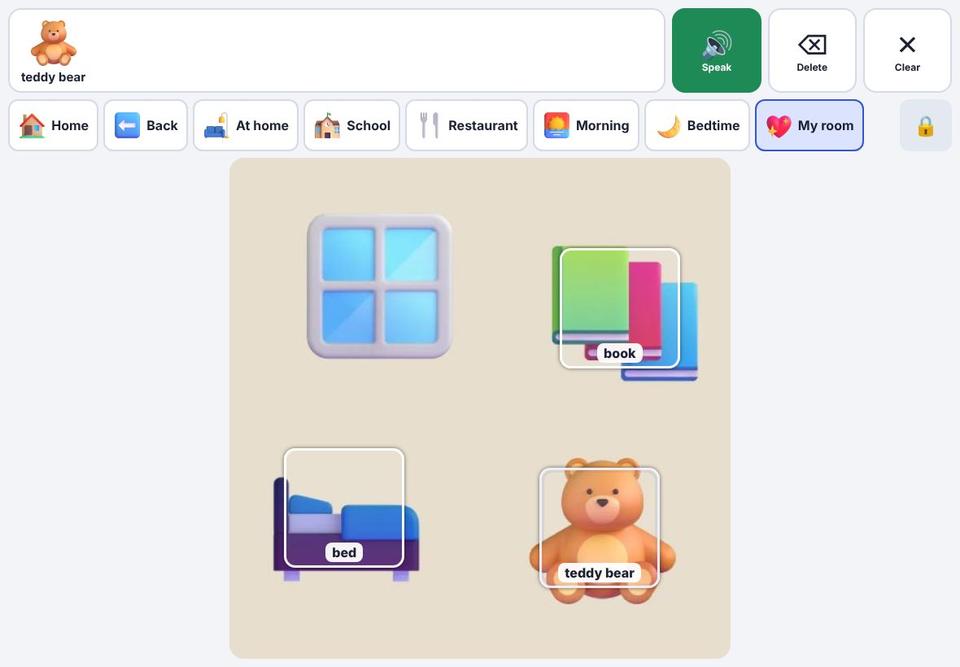
With switch scanning on, a scene shows as a normal grid of buttons.
To go back, use Back to a normal grid in the board editor.